

Your music, organized exactly as it is on your shelf.
Shelf for Music is a Windows app for collectors of vinyl, CDs, cassettes and any other format. It connects to your Discogs account, files your collection by rules you set, and, with AI-assisted identification, names records from photos down to the exact pressing.
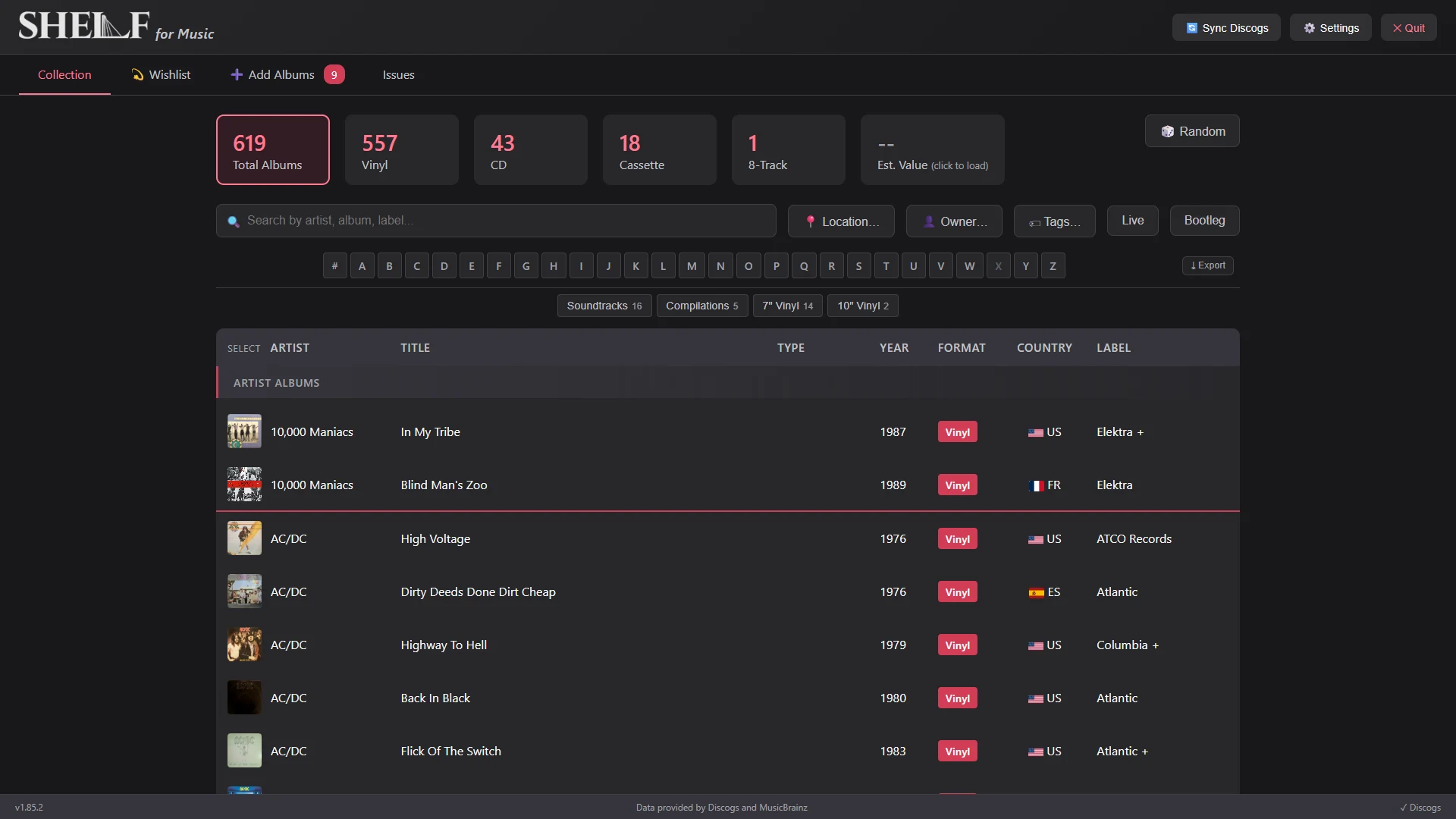
Sorting that thinks like a collector
Every rule is yours to set, down to the finest detail. Out of the box, Shelf files the way most collectors do:
Artist names, handled properly
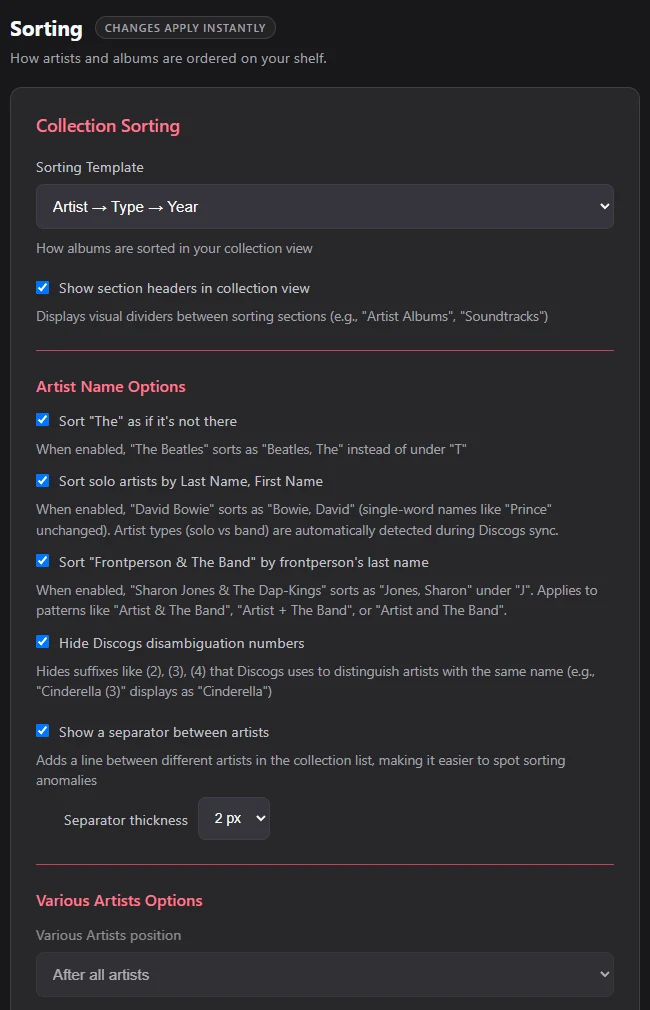
- Last name first for solo artists. Shelf only flips confirmed people, using Discogs' person-vs-band data. Bowie, David goes under B. Los Lobos never becomes "Lobos, Los".
- "The" ignored. The Beatles under B, The Smiths under S.
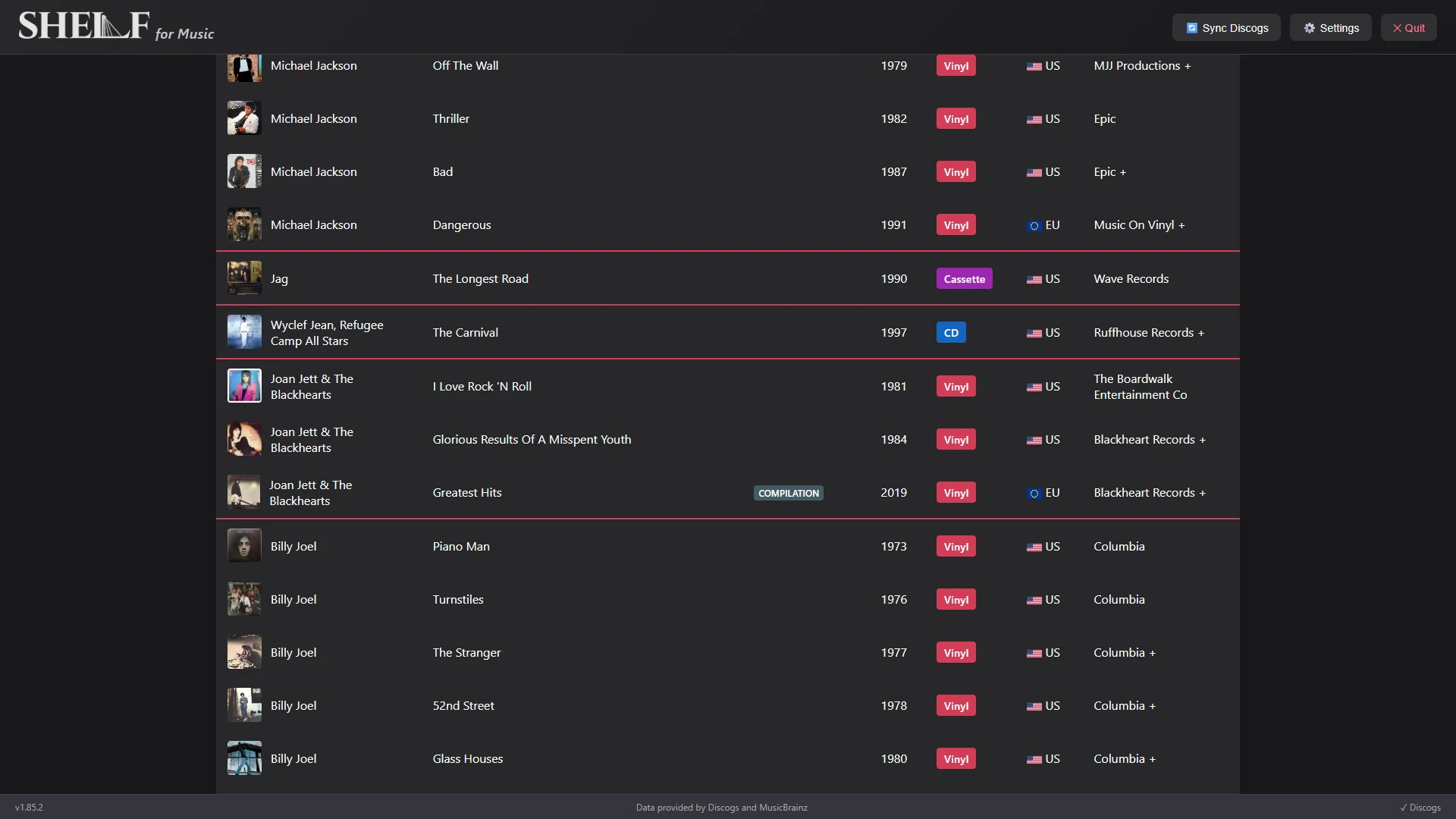
- Frontperson bands under the frontperson. Joan Jett & The Blackhearts, Sharon Jones & The Dap-Kings and Durand Jones & The Indications all file under J.
- Featured credits ("feat.", "with") don't decide where an album goes. Prefixes like Dr., DJ and MC stay intact, so Dr. John stays Dr. John.
- Accented names file under their base letter (Björk under B). Discogs disambiguation numbers can be hidden, so "Cinderella (3)" reads "Cinderella".
- Your call, always. Override how any artist sorts, file one artist directly after another (a solo career right after the band), or pin any album to a section.
Shelf rules for real shelves
- Five layouts.
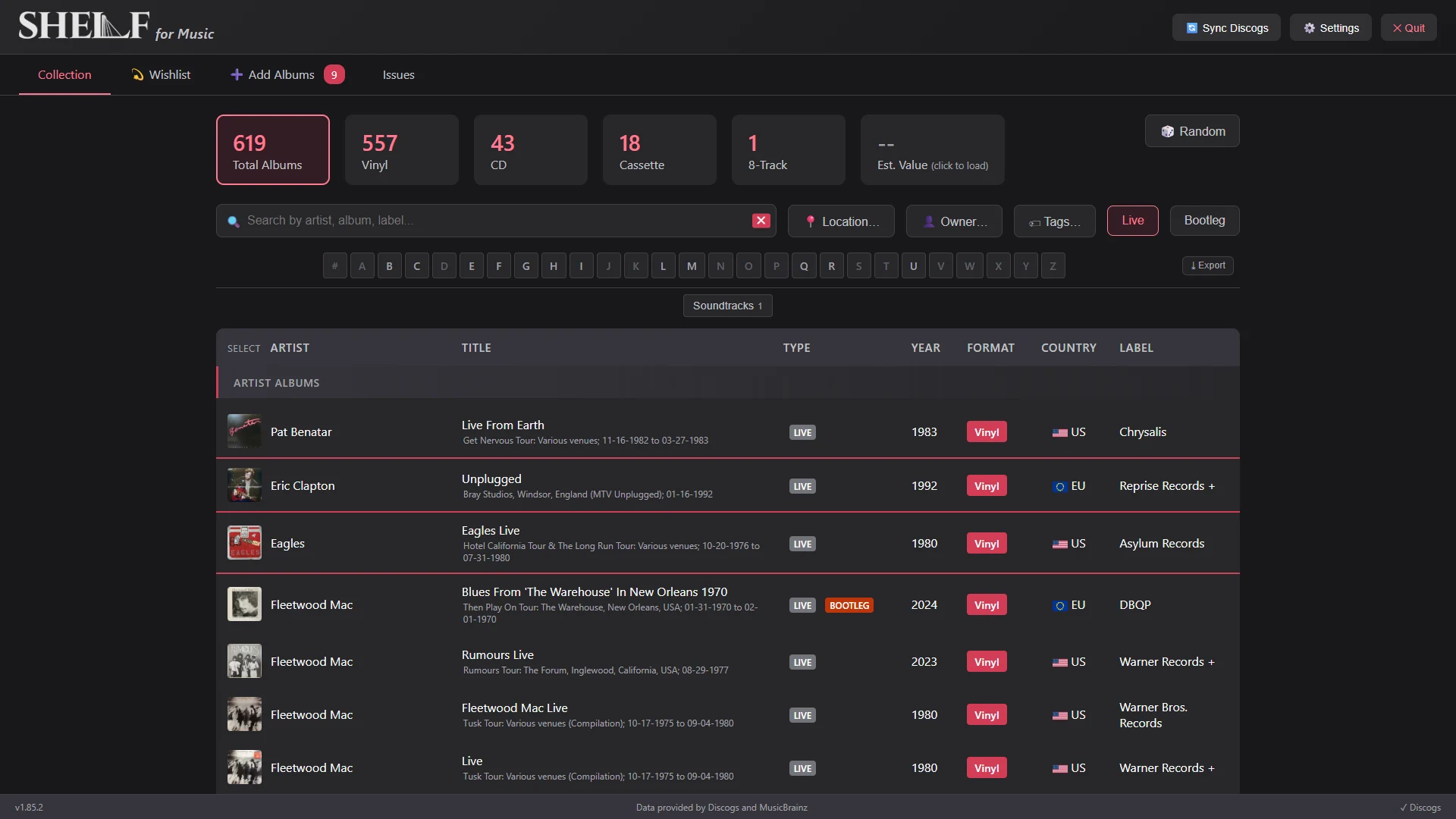
- Artist → Year: each artist's career in order, the default.
- Artist → Type → Year: studio, then live, compilations, EPs, singles.
- Simple A to Z.
- Format → Artist.
- Date Added.
- Year choices. Original release year, this pressing's year, or original year with multiple pressings ordered by pressing year.
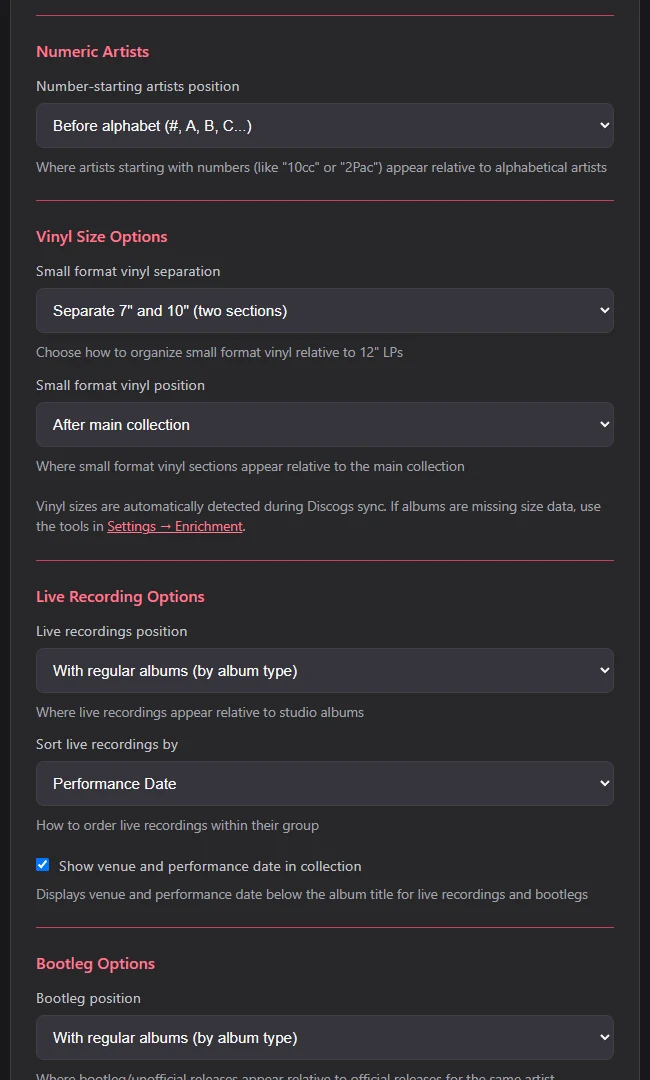
- Small vinyl. 7″ and 10″ records can live in their own sections, before or after the LPs. Sizes are detected automatically from Discogs data.
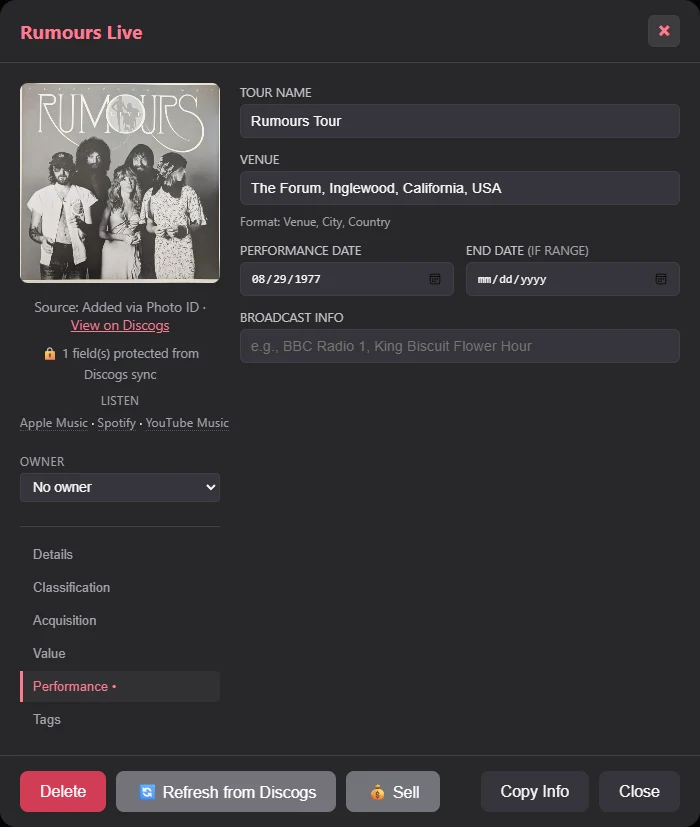
- Live albums. Keep them with the artist, or gather them in a Live Recordings section ordered by performance date, venue or title. Tour, venue and date show right under the title.
- Bootlegs. Detected automatically. Each artist's bootlegs file before or after their official releases, or right alongside them.
- Various Artists. Before all artists, after them, or under V. Soundtracks and compilations can get their own sections.
- Numbers. Artists like 10cc and 2Pac file before A or after Z.
- Section headers and artist dividers make the order easy to scan, and easy to spot a misfiled record in.
Find anything, fast
- Click a format card (Vinyl, CD, Cassette) to filter. Combine cards.
- Filter by location, owner, tag, live or bootleg. Search by artist, album or label.
- Jump with the A to Z bar or the section buttons.
- Click a column header for a quick temporary sort. Your layout comes back with one click.
- Group formats into "crates" by drag and drop. 8-tracks, reel-to-reel and box sets go wherever you want them.
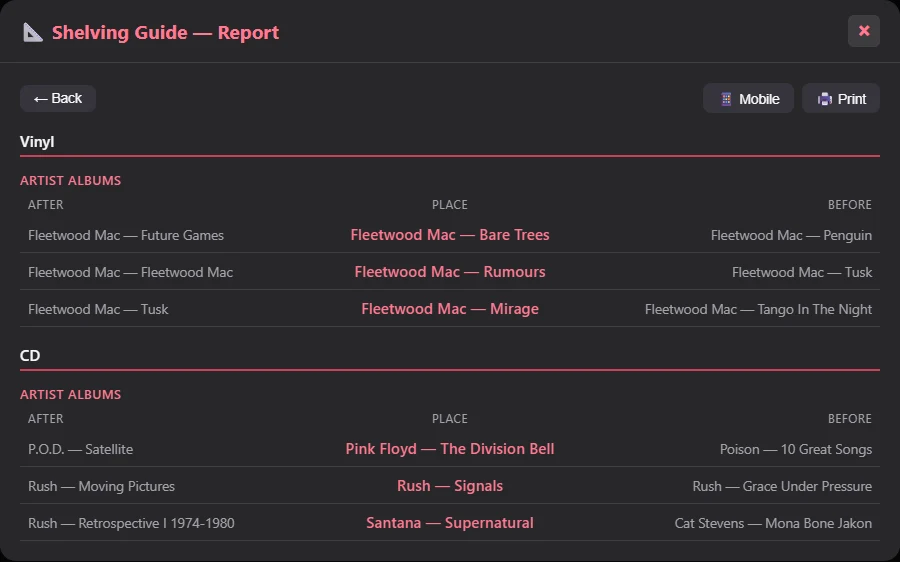
The Shelving Guide: "where does this one go?"
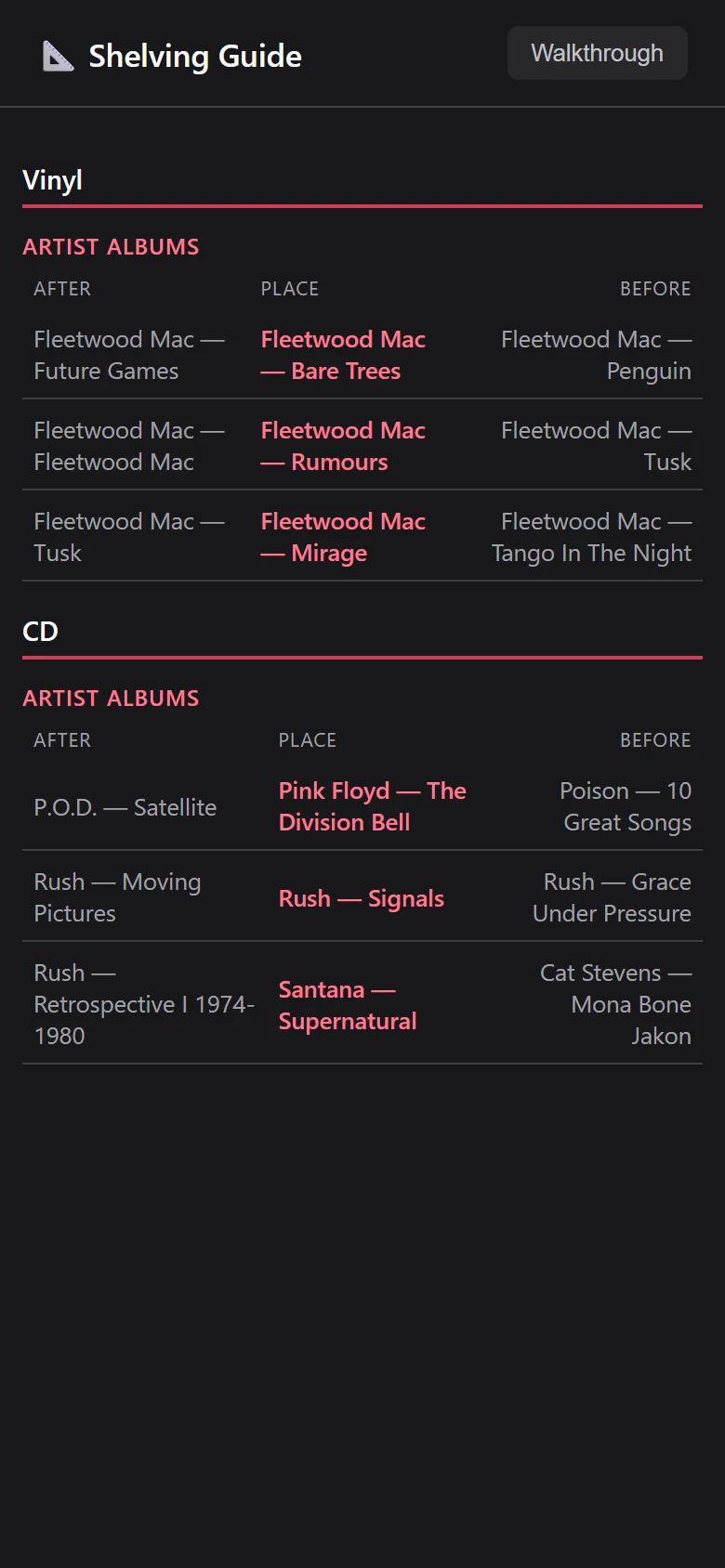
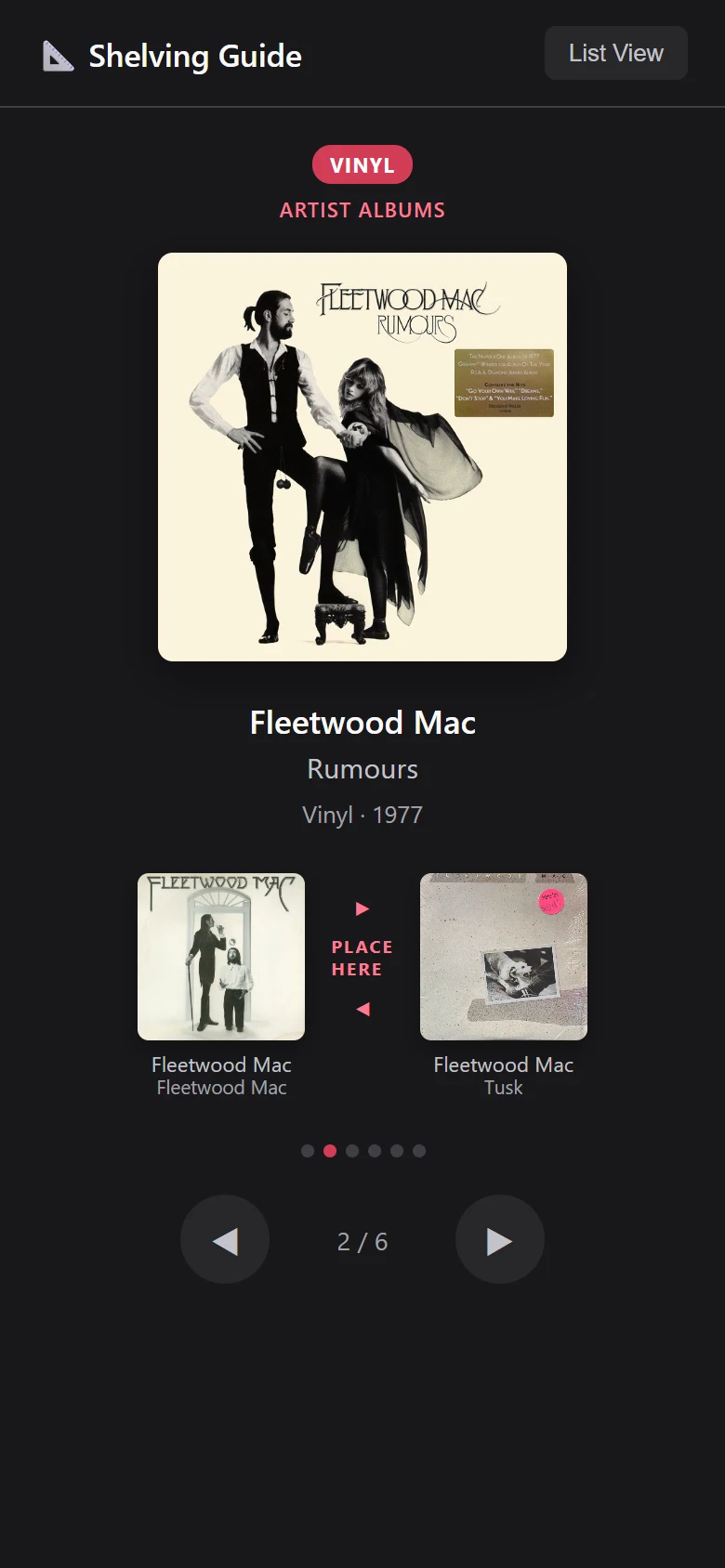
Just bought ten records? Pick them, and the Shelving Guide gives you each one's exact spot: the record it goes after and the record it goes before, using all your sorting rules, grouped by format and section. Print it, or scan the QR code and open it on your phone: as a list, or as a Walkthrough that shows one album at a time, with the covers it goes between, until every album is placed.
Identify records from a photo, down to the pressing
Point your phone at a record. Shelf's AI-assisted identification reads it, finds it on Discogs, and tells you which pressing you're holding, and how sure it is.
Capture
- Scan the QR code in Shelf to open the mobile album scanning interface on your phone, over Wi-Fi.
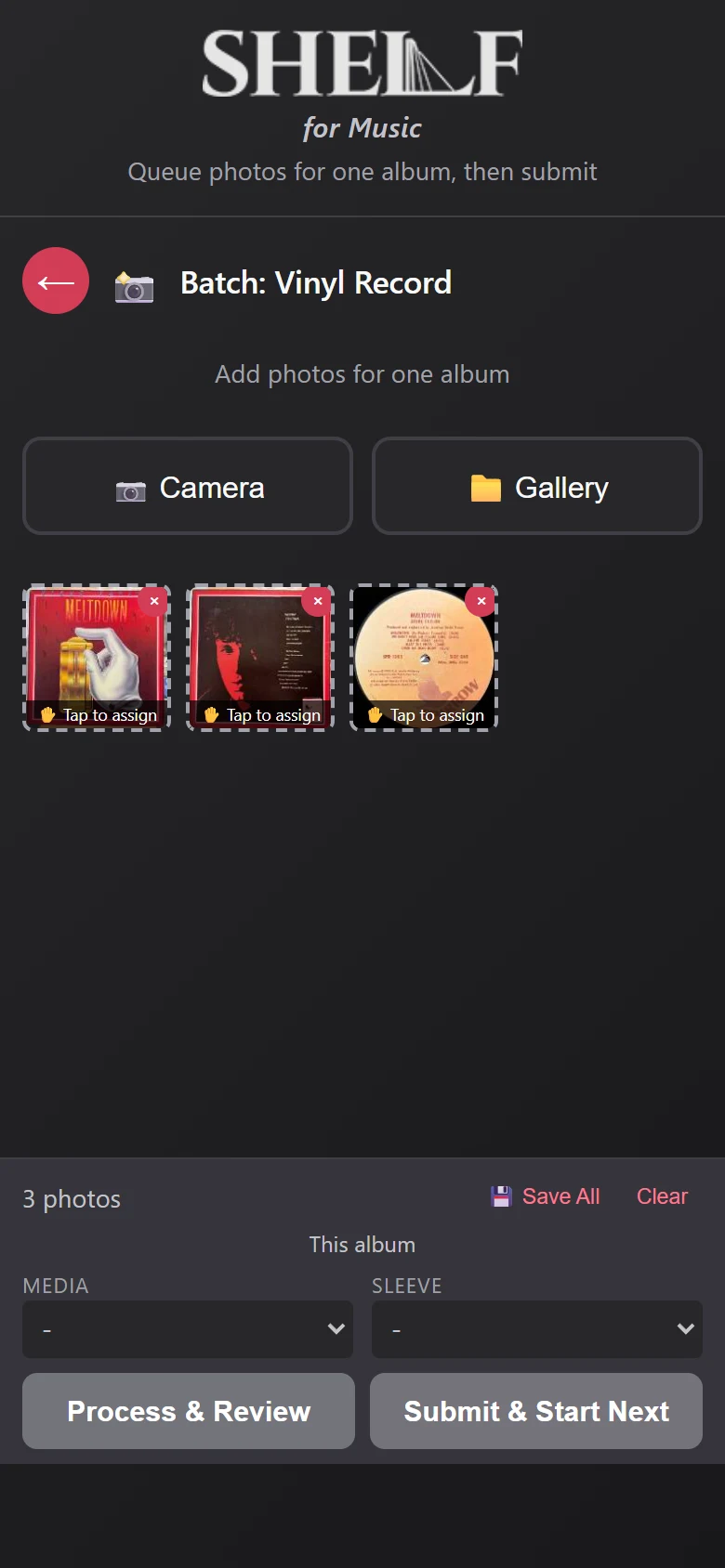
- Choose the medium (vinyl, CD, cassette or other), then add photos of one album from the camera or your gallery.
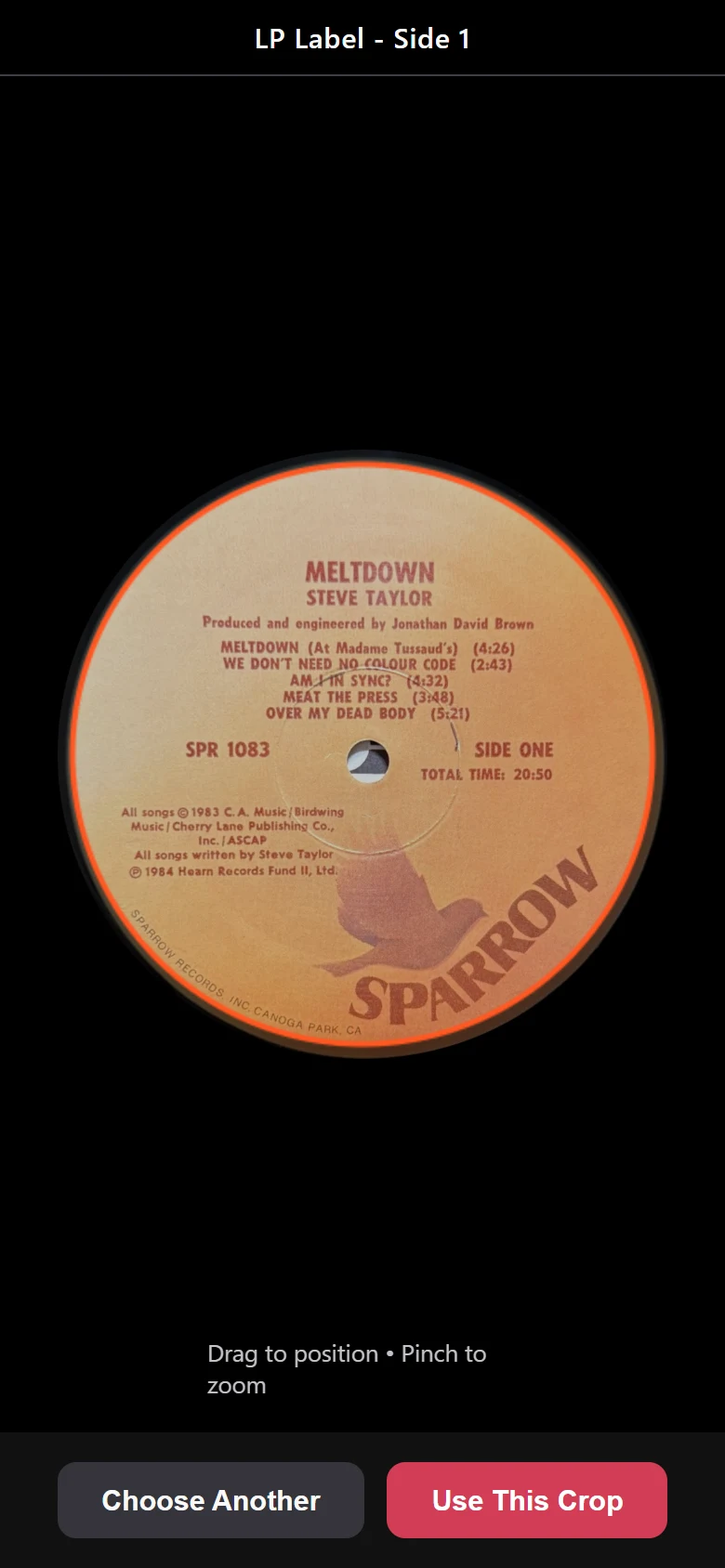
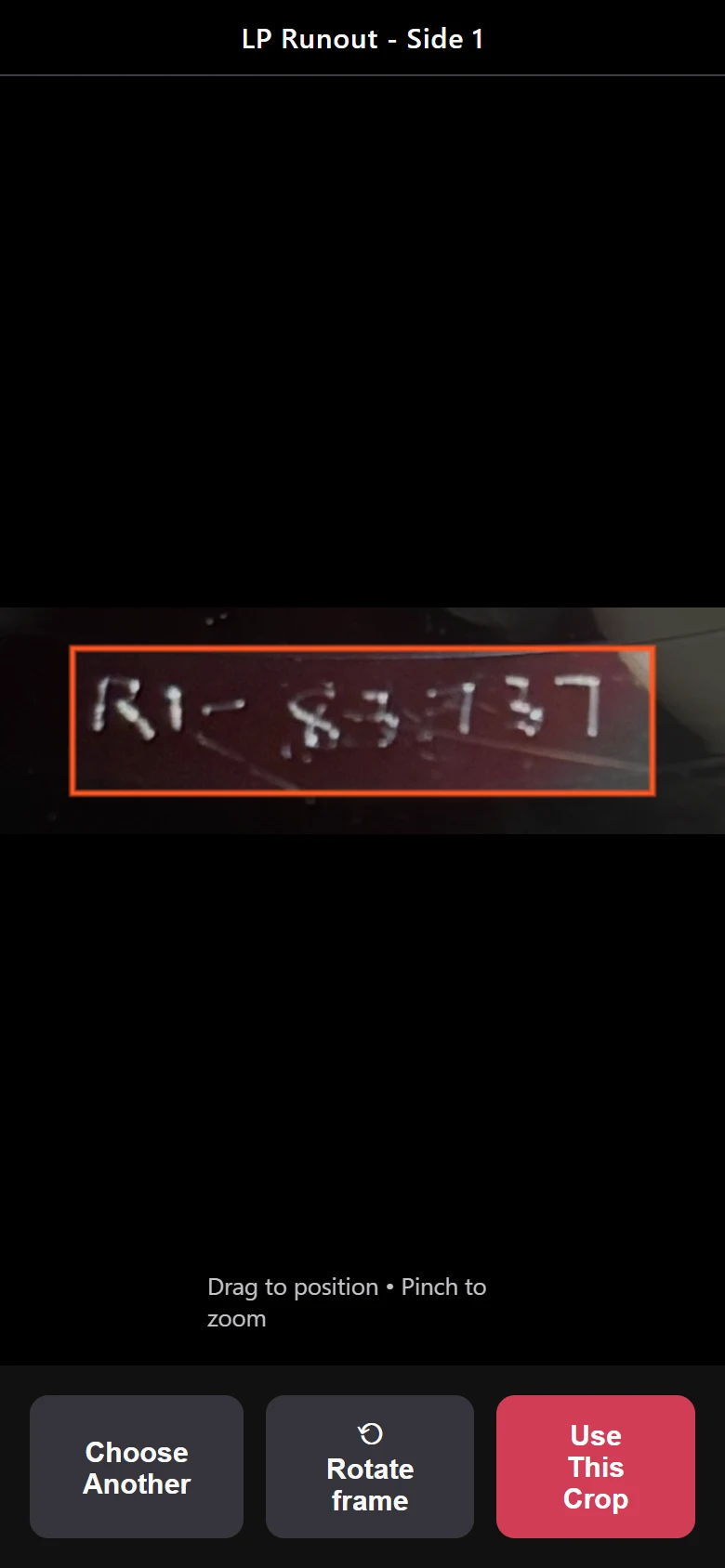
- Tap each photo to say what it is, and line it up in the guide mask for that type:
- front or back cover;
- Side 1 or 2 label;
- Side 1 or 2 runout;
- CD disc face or inner-ring matrix;
- cassette J-card or shell, Side A or B.
- Several photos, one album. All of an album's photos are read together and merged into one answer.
- Barcodes are free. Scanning a barcode looks it up on Discogs directly, with no AI used.
- Or upload photos from your computer.
- Scan a whole stack now, review later. Everything waits in Pending Review.
Three ways to add albums
- AI-assisted from a photo. Every copy includes 25 AI-assisted album identifications. One identification covers one album, however many photos it takes. More are available in add-on packs, sold separately.
- By hand. Add any album yourself, one at a time.
- From a CSV file. Bring in a whole list from a spreadsheet.
What it reads
Not just artist and title:
- catalog numbers and barcodes;
- matrix and runout etchings;
- pressing-plant numbers;
- country lines;
- tracklists with sides;
- what the record says about itself: Promo, Test Pressing, White Label, Club Edition, Limited, and numbered editions ("No. 266 of 750").
How it decides
- Every candidate pressing is scored on evidence: catalog number, runout, barcode, label, country, year, tracklist and format. A wrong format (a CD result for a vinyl scan) is heavily penalized.
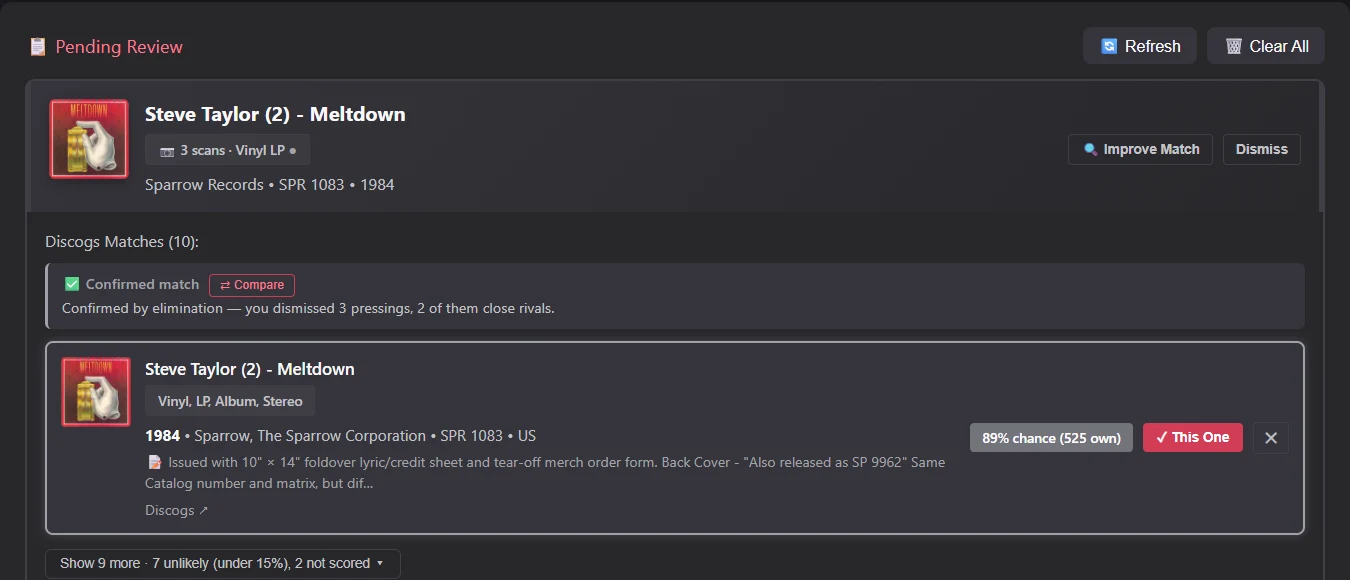
- The candidates are then weighed against each other, and Shelf gives a plain-language verdict:
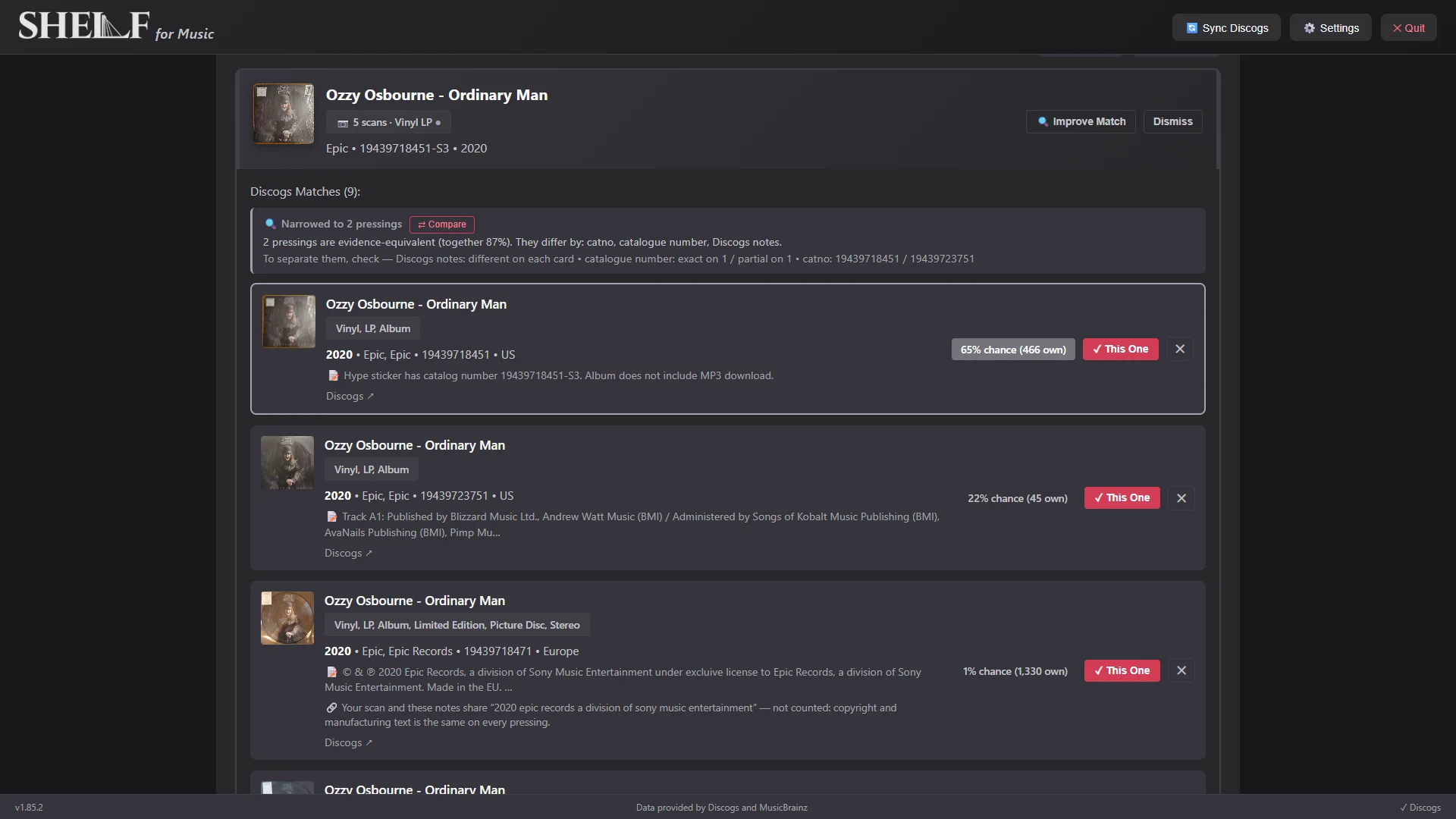
- ✅ Confirmed match. A hard identifier settles it ("A runout inscription resolved to exactly this release"), or the rivals fall away as you dismiss them ("Confirmed by elimination: you dismissed 3 pressings, 2 of them close rivals").
- 🔍 Narrowed to N pressings. When several pressings are identical on paper, Shelf says so and tells you what to check to tell them apart ("Discogs notes: different on each card • catalogue number: exact on 1 / partial on 1").
- 🎯 Likely match or ❓ Best guess only. Honest when the evidence is thin.
- "May not be in Discogs at all". With a manual-add option.
- Each candidate shows its chance as a percentage, how many Discogs users own it, its Discogs release notes, and the evidence for and against it. Shared wording that proves nothing, like a copyright line printed on every pressing, is shown as "not counted" with the reason.
- It also tells you whether you already own the album, or have that exact pressing on your wishlist.
You stay in charge
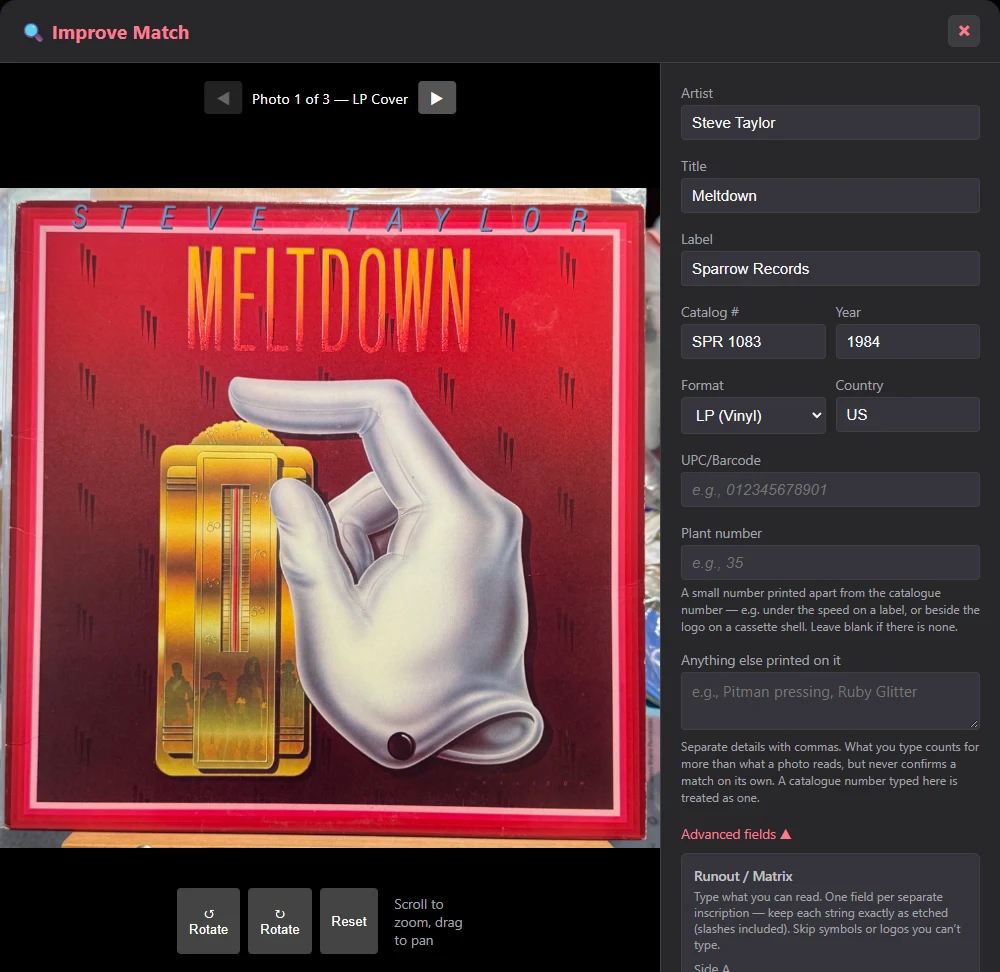
- Improve Match. Zoom and rotate your photos, correct anything that was misread, or type what you can see (a catalog number, the runout, "Anything else printed on it"). What you type counts for more than what the photo read.
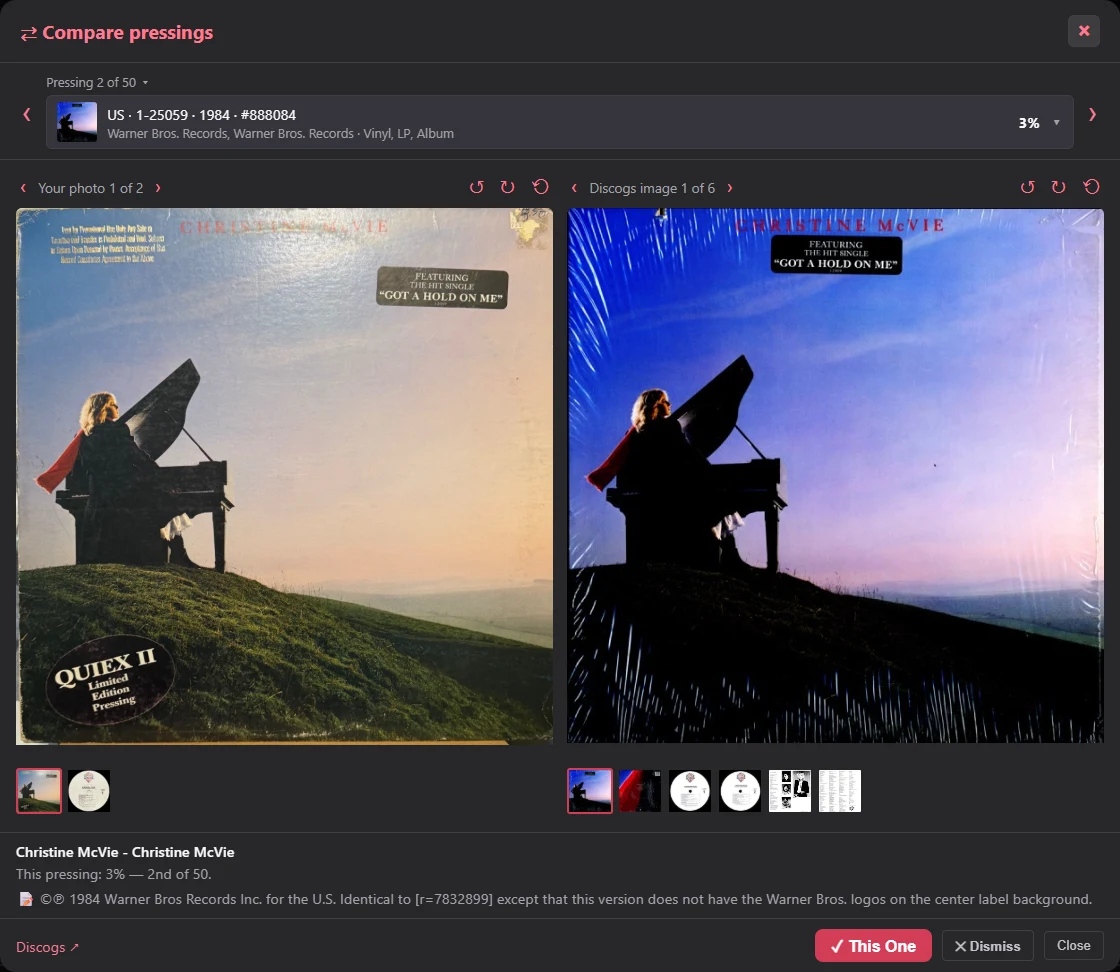
- Compare. Compare your album side by side with each candidate's Discogs images, and step through every pressing. Zoom, pan and rotate either side until the two line up.
- Request Scan. From the desktop, ask the phone for another angle, and the new photo merges into the same result.
- Nothing is added until you pick it. Pick several, grade their media and sleeve condition in one place, and add them all at once, to Shelf and to Discogs.
Works with your Discogs account
Bring your collection in
- Connect with Discogs' own sign-in. Shelf never sees your password.
- Your collection comes in with:
- covers, labels and catalog numbers;
- formats;
- media and sleeve conditions;
- genres, which become tags.
- Sync again whenever you like, with the Sync Discogs button or automatically at startup.
- Your wantlist comes in as your Wishlist. Shelf flags anything you already own.
Shelf fills in what Discogs leaves out
- Original release years. From Discogs master releases, so Ziggy Stardust sorts as 1972 even if your copy is a 2012 reissue.
- Person or band. This powers last-name-first sorting.
- Vinyl sizes, bootleg status, and album type. Studio, live, soundtrack, compilation, EP, single, box set.
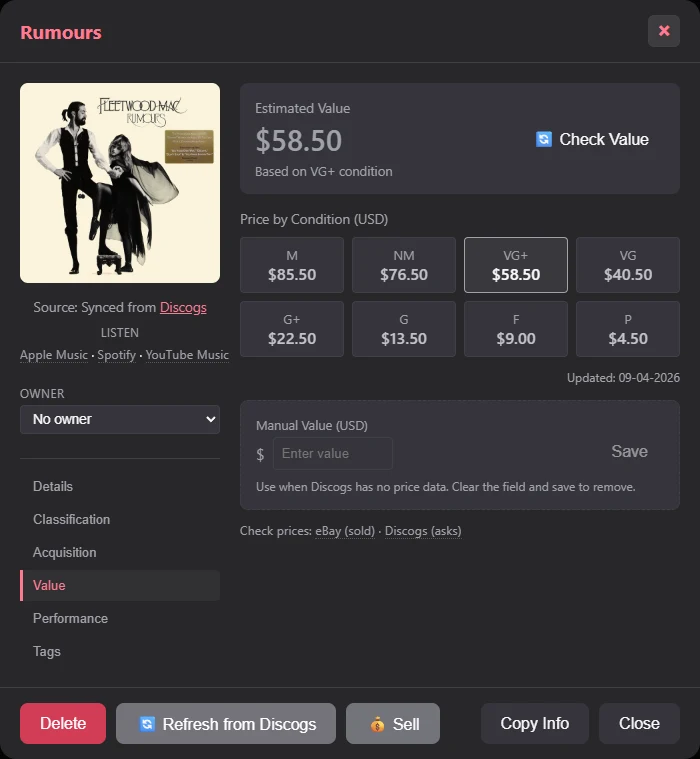
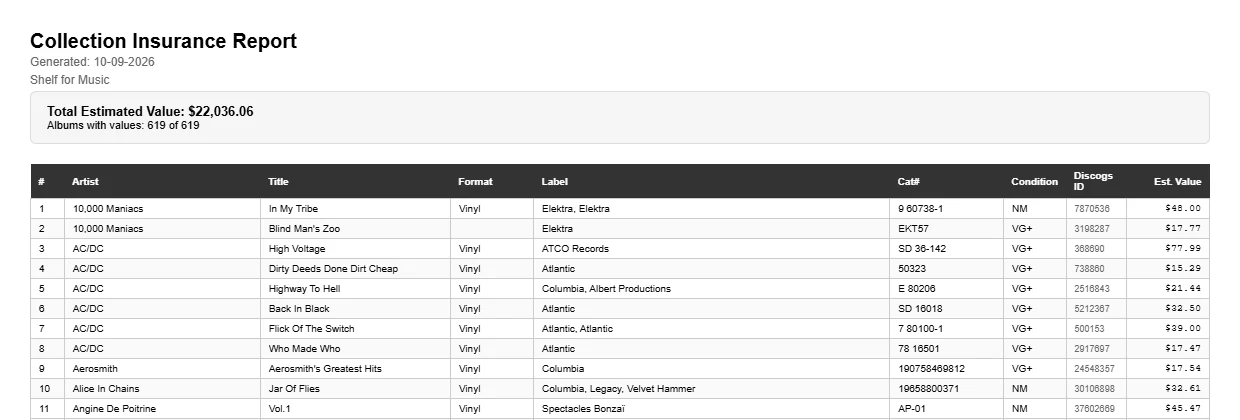
- Market value. Discogs price suggestions for your copy's condition, every grade from Mint to Poor. You can enter your own value when Discogs has no sales data, and Shelf reminds you when hand-entered values get old.
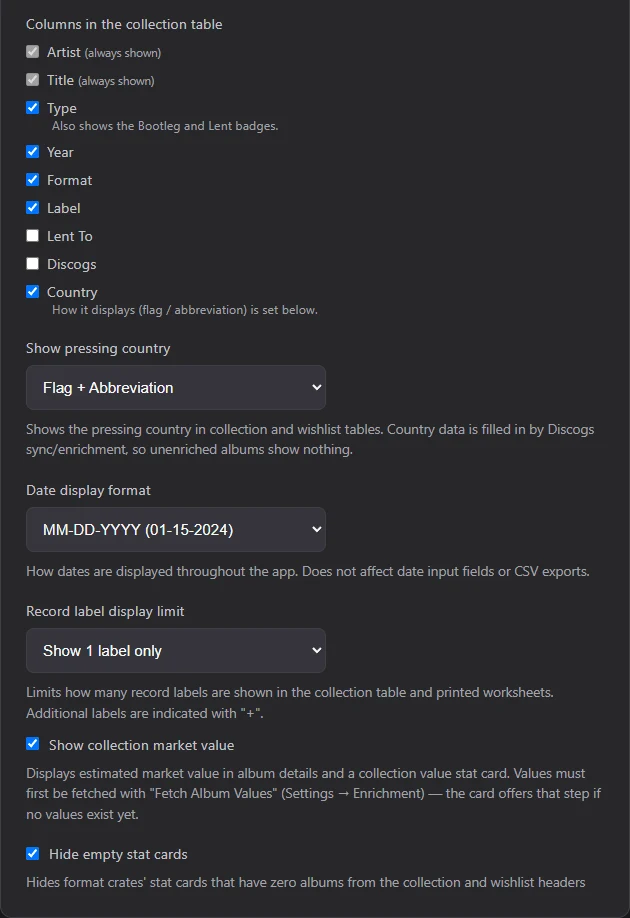
- What the whole collection is worth. An optional stat card totals your collection's estimated value. It stays hidden until you click it, so the number isn't on screen every time you open Shelf, and it can be switched off entirely in Settings → Display.
Your edits are safe
Change an artist spelling, a year or a label in Shelf, and that field is protected: the next Discogs sync won't overwrite it. You can unlock it again any time.
What goes back to Discogs, and only with your say-so:
- albums you add (or "Local only" if you prefer);
- condition grades;
- wantlist changes;
- deletions you choose to make on both sides.
Everything else you edit stays in Shelf.
Optional, not required. Shelf works without a Discogs account: browse, sort, add albums by hand or from a spreadsheet, track conditions and locations, and back up. Discogs unlocks matching, enrichment and values.

Everything else that's in the box
- Live recordings: tour name, venue, performance date (or range) and broadcast info for every live album and bootleg. Plus "N other pressings from this concert".
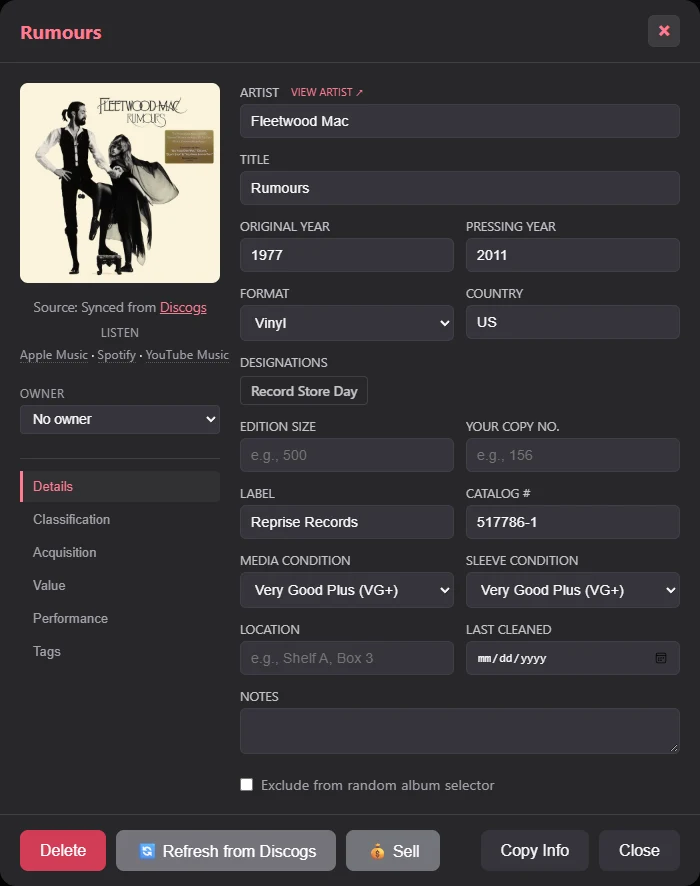
- Album details:
- original and pressing year, country;
- designations (Promo, Limited, Record Store Day…);
- edition size and your copy's number;
- media and sleeve condition (Goldmine grades);
- location, last-cleaned date, notes.
- Acquisition tracking: where and when you bought it, what you paid.
- Lending library: who has it, when it's due back, how to reach them. Overdue loans first.
- Locations, owners and tags: "Shelf A, Box 3"; whose record it is in a shared collection; your own color tags plus Discogs genres.
- Random album picker: "What should I listen to?", respecting your current filters.
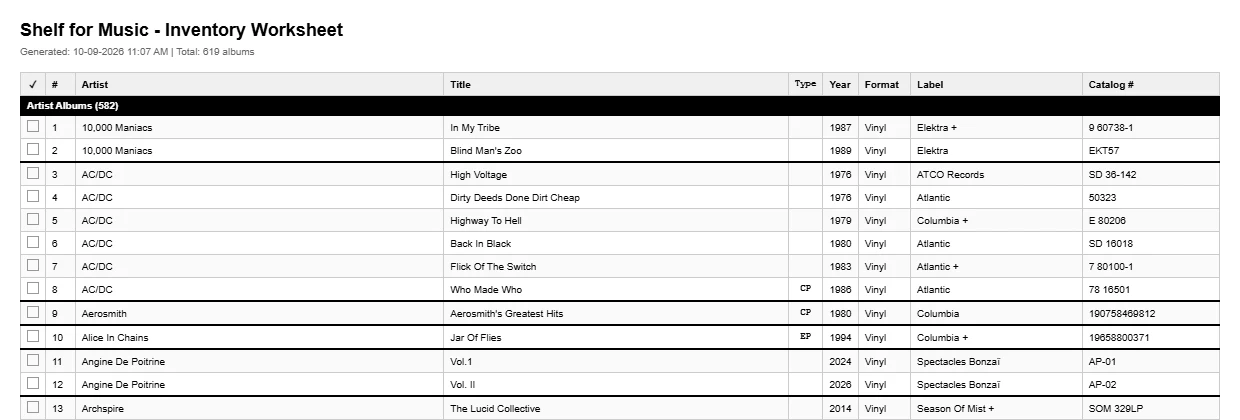
- Print worksheets: inventory checklists in a basic or custom layout, by section or on separate pages.
- Insurance report: values and conditions for your records, with the collection's total.
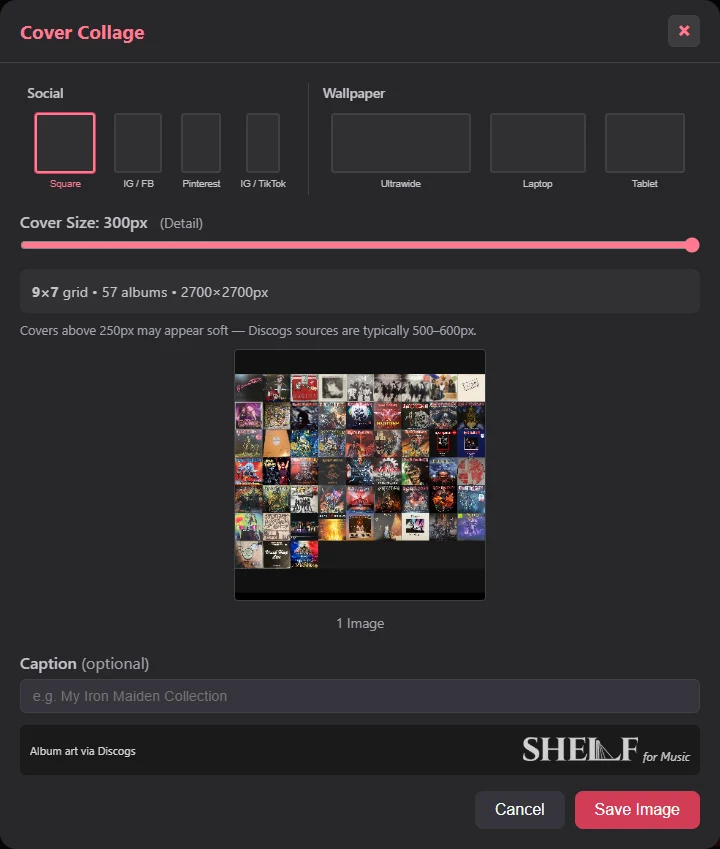
- Cover collage: export your covers as a shareable image sized for social posts or wallpapers, with a caption if you want one. Everything in the current view goes in, so a filter makes a themed collage.
- Sell listings:
- a suggested price from Discogs data;
- a copy-ready text listing for Facebook Marketplace or Craigslist;
- a one-click jump to Discogs' sell page.
- Record cleaning log: mark what's been cleaned, and when.
- Issues tab: finds what's missing (conditions, covers, years, locations, values) and duplicate pressings.
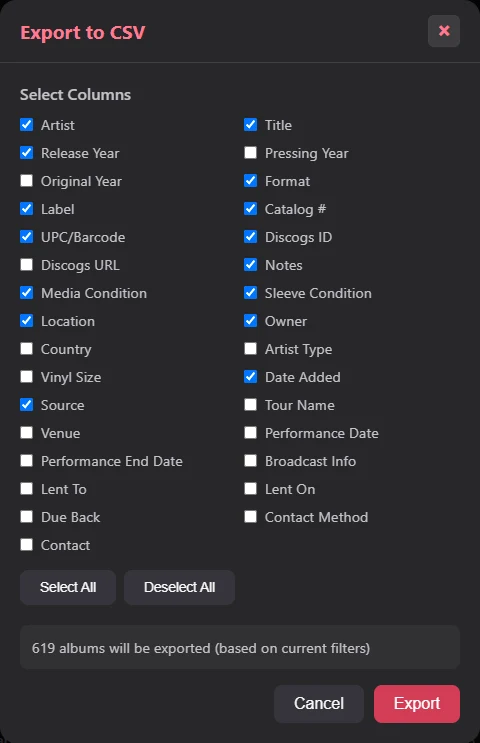
- CSV import and export. You choose the columns.
- Automatic local backups:
- once a day, to a folder you choose, with no account or internet needed;
- every backup is checked after writing;
- restores can be undone;
- moving to a new computer is built in.
- Six color themes: four dark, two light, all measured against WCAG AA contrast.
- Customizable: table columns, the right-click menu, date and country display.
Private by design
- Your collection lives on your PC. No analytics, no telemetry, no ads.
- Data leaves your computer only when you use a feature that needs it, such as Discogs and MusicBrainz for music data.
- Photo identification sends only the photos you choose to scan.
- Backups never contain your sign-ins.
- Read the Shelf for Music privacy policy.
Requirements
- Windows 10 (version 2004 or later) or Windows 11, 64-bit (x64).
- Internet connection for Discogs, photo identification and values.
- Phone capture: any phone with a browser on the same Wi-Fi network.
- Support: hello@biglittlebrother.dev
Coming soon to the Microsoft Store. Price to be announced.
More from the Shelf family
- Shelf for Comics Planned
- Shelf for Games Planned
- Shelf for Movies Planned
- Shelf for Books Planned
Shelf for Music is an independent product of Big Little Brother LLC. It is not affiliated with, maintained, authorized, endorsed, or sponsored by Discogs (Zink Media, LLC) or any of its affiliates. "Discogs" is a trademark of Zink Media, LLC. Music data and cover art provided by Discogs; supplementary data provided by MusicBrainz.